
I wanted to test if an AI tool could actually turn a URL into a usable marketing video. So I pasted Demandsage’s URL into ngram and picked a visual style and a template. Within 5 minutes, a 30-second marketing video was ready.
ngram is an AI video creation platform that creates marketing videos out of almost anything. You can just attach a prompt, docs, screenshots, or a screen recording; the platform’s AI-powered engine turns raw assets into production-ready videos within minutes.
But how good is it, really?
Let’s test all these ngram features and capabilities in real time and find out if you should invest your money or time.
A quick clarification: This review is not related to the Google Books Ngram Viewer. And it has nothing to do with n-gram language models in NLP either. This is a completely different product.
ngram Review: Quick Verdict
ngram stood up to its name. I ran two full tests with it, one from a URL and one from a plain text prompt. Both produced a usable marketing video. Though I tested it with the free plan, users can go for a paid plan to remove branding. Overall, the platform is great for quick AI marketing video generation.
| Aspect | Details |
|---|---|
| Best for | SaaS growth marketers, feature videos, frame-level editing, tutorials, demos & growth teams |
| Not ideal for | Users needing hyper-realistic AI human avatar or automated live product navigation |
| Biggest strength | The storyboard-first workflow. You see the full plan before a single credit gets touched |
| Biggest limitation | AI visuals sometimes miss complex scenes. Expect at least one editing pass on most renders |
| Ease of Use | Very easy to use with a guided flow. You don’t need any video editing skills. |
| AI Video Output Quality | High for product demos and motion graphics. Voiceovers sound natural. Visual overlaps can happen on busy scenes |
| Free Plan | Free account access with up to 600 credits |
| Pricing | Paid plans start at $29/month (Basic), go up to $59/month (Premium), and $299/month (Ultimate) |
| Rating | 4.8/5 (Based on 17 reviews on G2) |
ngram Pros & Cons
After testing ngram with two different video types, here’s what stood out on both sides:
Pros
- ngram generates video from any URLs, docs, PDFs, screenshots, screen recordings, or just a plain text prompt.
- Before you spend any credit, you can edit the script and storyboard. This way, you don’t waste credits on a render that was heading in the wrong direction.
- Post-render edits cost a fraction of a fresh render, with AI-powered edits running at roughly 1 credit per second.
- BrandKit locks your branding in once. You don’t need to copy hex codes every time you start a new project.
- Multi-format export (16:9, 9:16, 1:1, and 4:5) from one project.
- The AI voiceover sounds surprisingly human with multi-language support.
- The free plan gives you up to 600 credits, fair enough to test the tool.
Cons
- AI visuals can overlap or look slightly off in complex scenes, requiring more time to fix.
- Web-only application. No mobile app available, so you can’t capture anything on the go.
- Collaboration features feel early-stage. They exist, but they’re not as refined as what you’d expect from enterprise-focused tools.
What is ngram?
ngram is an AI video creation platform built for product and marketing teams. You give it raw material, and the AI video generator tool produces a complete video. The raw material can be anything: a plain description, a document, a screenshot, or a URL.
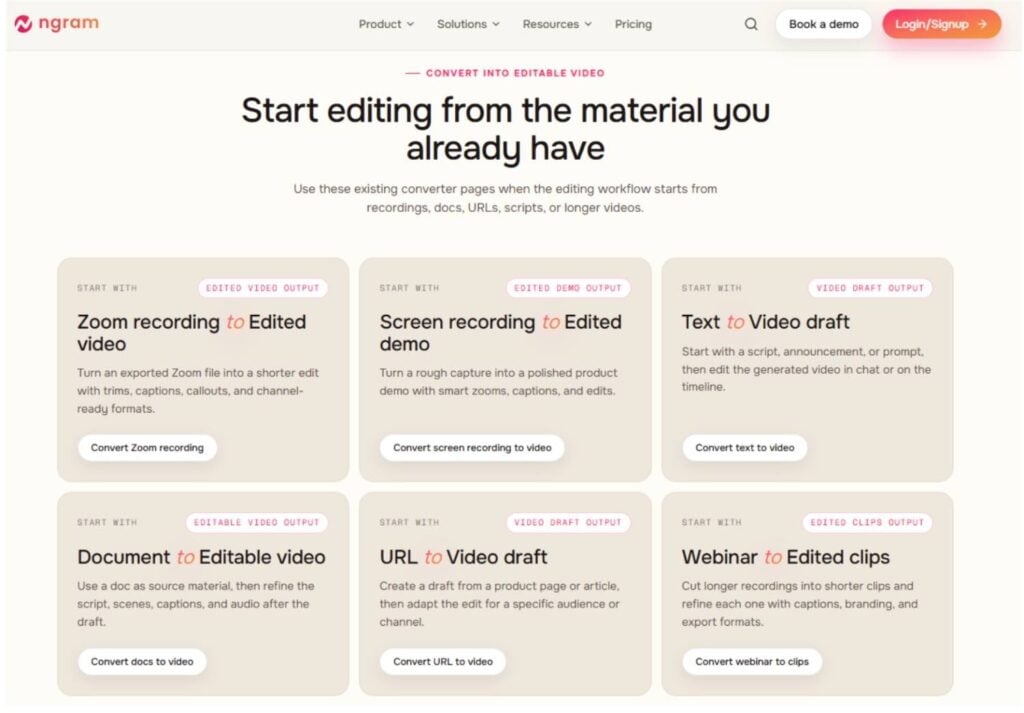
Once they are added, you can add a script (or generate with AI), motion graphics, a transition template, and an AI voiceover before hitting the generate button.
The idea behind starting ngram was simple – create a marketing video as quickly as possible, without any hardcore editing skills required.
Who is ngram Built For?
ngram is ideal for:
- Product Marketer: To create an explainer and launch videos from the assets you already have.
- Growth and Marketing Teams: To produce landing page videos, ad creatives, and social clips.
- Product Manager: To turn changelogs and feature specifications into video narratives.
- Sales: To create persona-specific demo videos or clips without recording one by one.
- Customer Success: To create onboarding and walkthrough videos for new clients.
How to Get ngram Credits?
Before you start with anything, you need to have credits in your account to generate any video at all.
Beginners can start with free credits, and the number varies on the type of email you are using for sign-up. Here’s how free credits reflect in your account:
| What You Need to Do | Number of Credits You’ll Get |
|---|---|
| Sign up with work email | 600 credits |
| Sign up with personal email | 300 credits |
| Sign up with temporary email | 50 credits |
| Sign up through referral link | Additional 200 credits |
| Post on X/LinkedIn (built with ngram) | 100 credits once a week |
| Helpful Comment on Reddit about ngram | 200 credits once a week |
| Share your story via a form or Meet | Up to 2,000 credits |
Apart from that, you can become an affiliate partner to earn credits and even recurring cash and commission for successful referrals. To know more about it, check the ngram Partner Program.
How ngram Works (Step-by-Step Guide)
ngram works on a “plan before you render” philosophy. That simply means you get to see the full script and storyboard before any credits are used on generation. Here’s how the entire process looks from start to finish.
Step 1: Add Raw Material
After logging in, you click to create a new video. The input options show up right away. You can paste a URL, upload a document, drop in screenshots, or record your screen directly inside the platform. There’s also a plain text prompt if you don’t have any existing material and just want to describe what the video should cover.
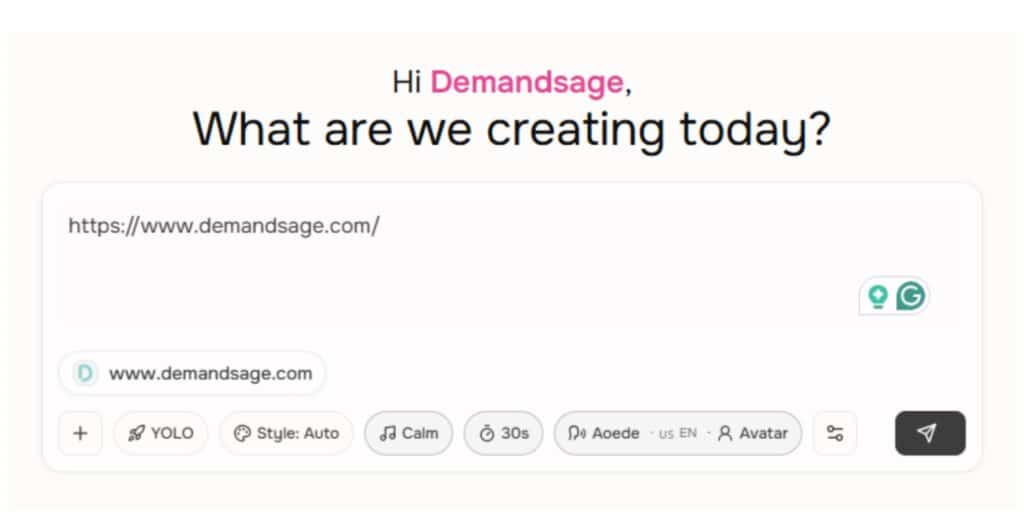
I went with a URL for my first test. Pasted in Demandsage’s landing page, and ngram pulled the content within seconds.
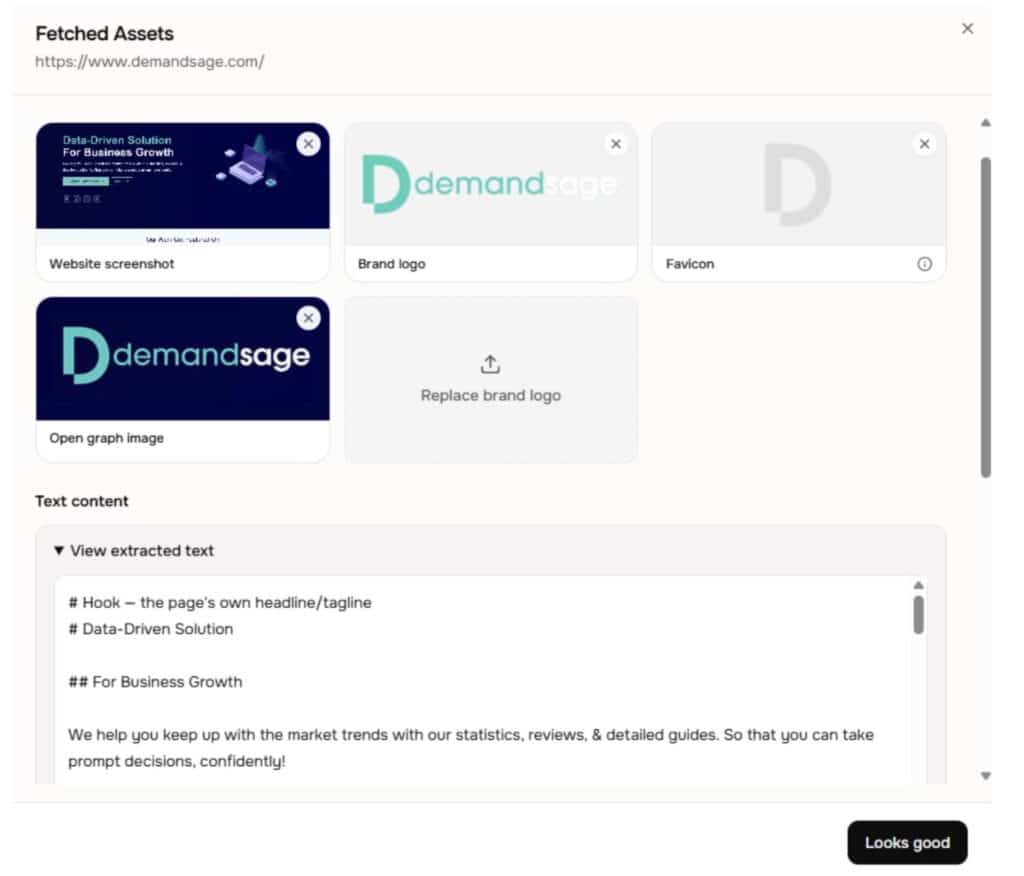
No formatting issues, no missing sections.
Step 2: Make Your Creative Choices
This is where you shape the video before anything gets generated. ngram walks you through a few choices, one screen at a time.
First, you pick a visual style. Options include illustration, 3D pop, papercut, cosmic, and a few others. I picked Auto for the first video just to see what ngram would default to.
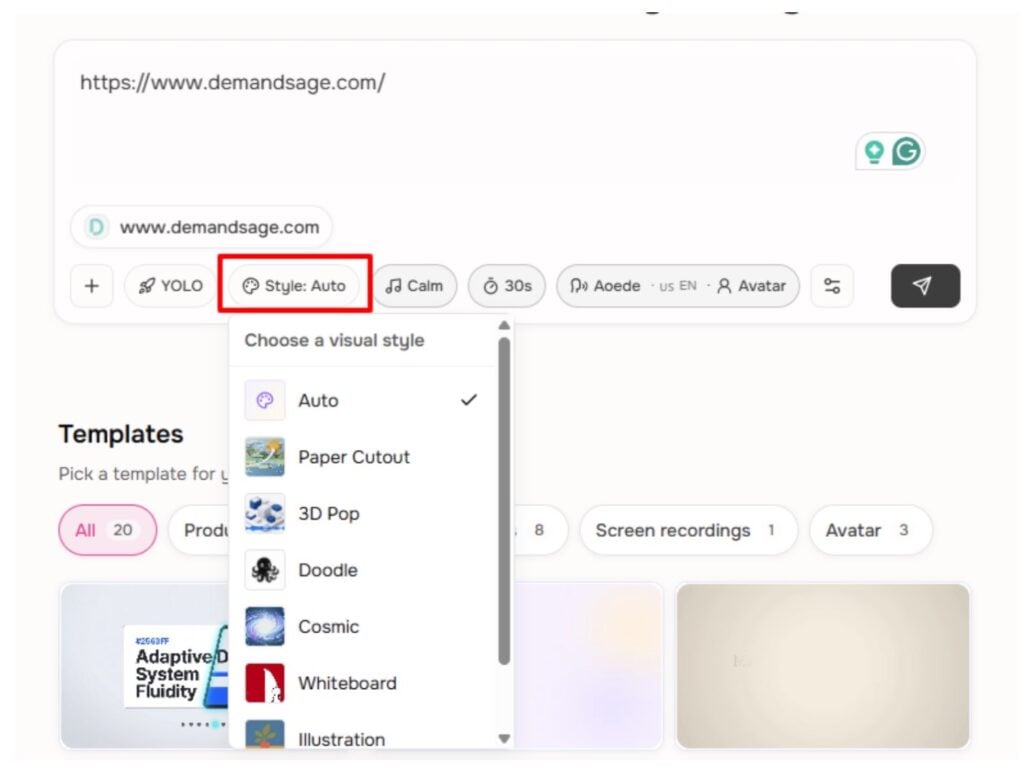
After that, you’ll need to set the target audience and pick an animation mode: AI Motion Graphics, Avatar video, Background Music, and Video Time.
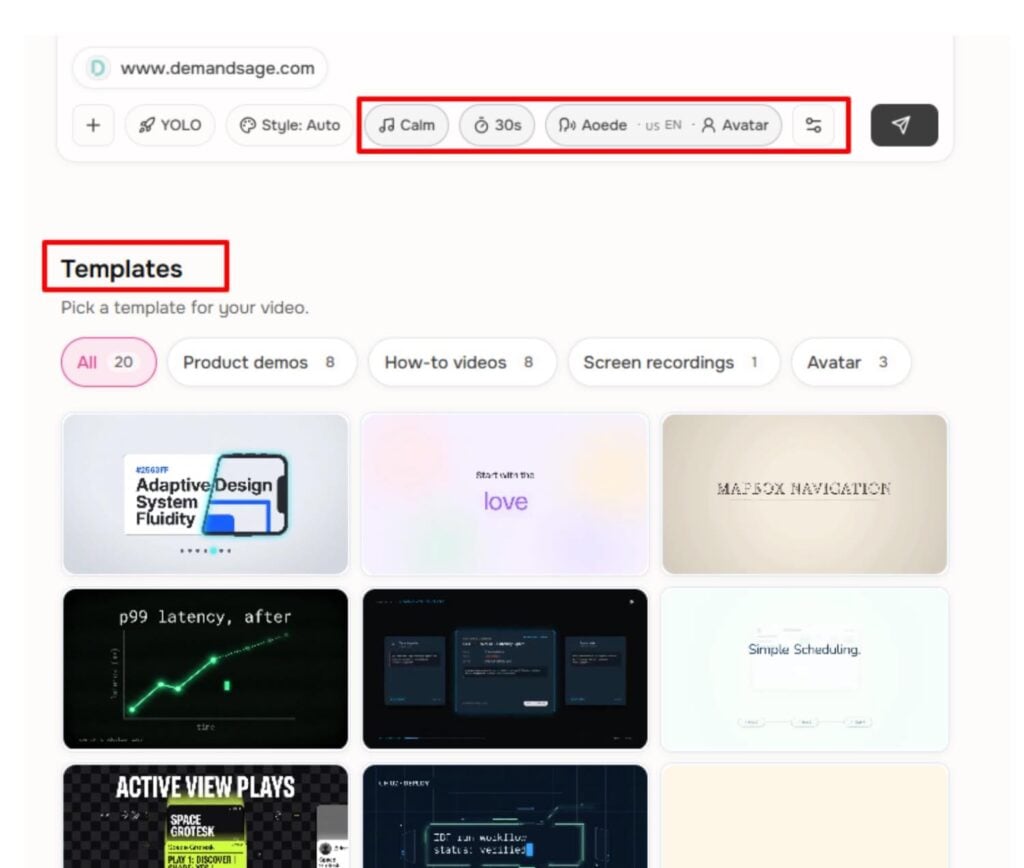
None of these choices are permanent. You can always go back and change them. But getting them right here saves time later.
Step 3: Review the Script and Storyboard
This is where ngram separates itself from most AI video tools I’ve used. Before anything gets rendered, you see a complete script with a scene-by-scene storyboard. Every line of the voiceover is there. Every visual direction is mapped out. You can read it, rearrange scenes, rewrite copy, or change the direction entirely.
And here’s the important part: no credits are spent at this stage. Zero.
I caught a phrasing issue during this step in my product demo video. The script used a generic line that didn’t match how Demandsage actually describes its product. Then you choose a story flow. I chose the option: Problem – Solution — Demo — CTA.
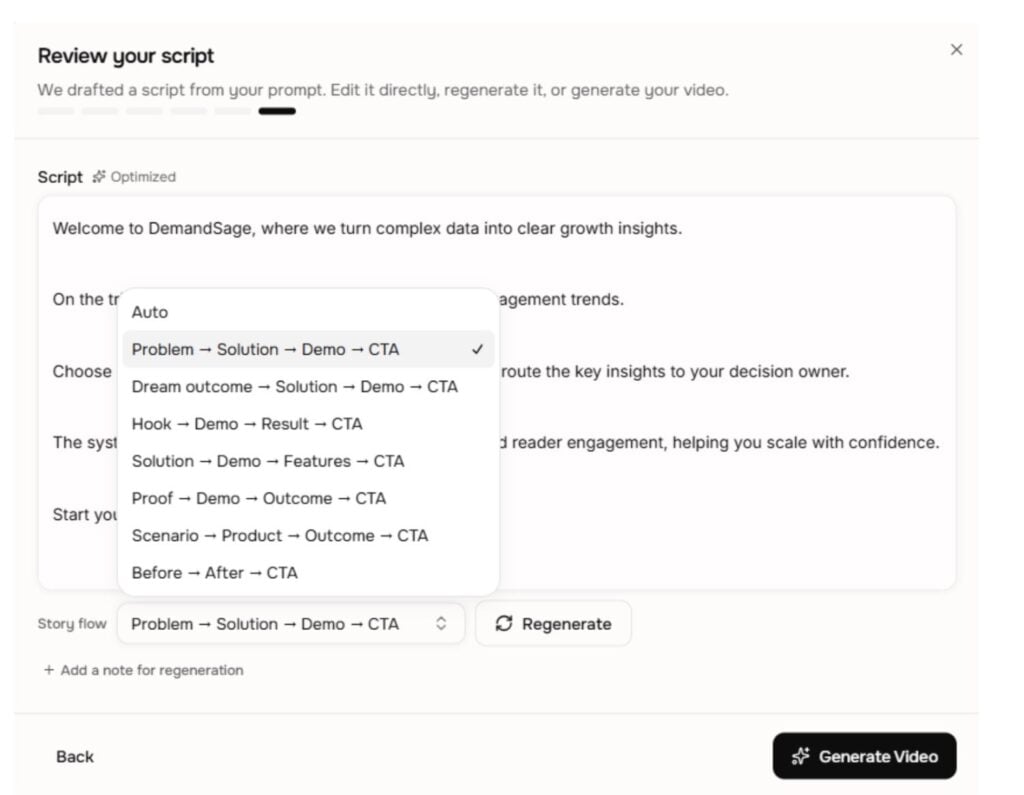
I fixed it in about 20 seconds. On most other platforms, that kind of fix would mean re-rendering the whole thing and burning more credits. Here, it was just a text edit.
Step 4: Generate and Refine
Once you approve the storyboard, hit generate and ngram renders the full video. It adds motion graphics, transitions, captions, and the AI voiceover. All automatic. My 30-second video took about 2 minutes, 26 seconds to render. Longer videos (60 to 90 seconds) take around 3 to 5 minutes.
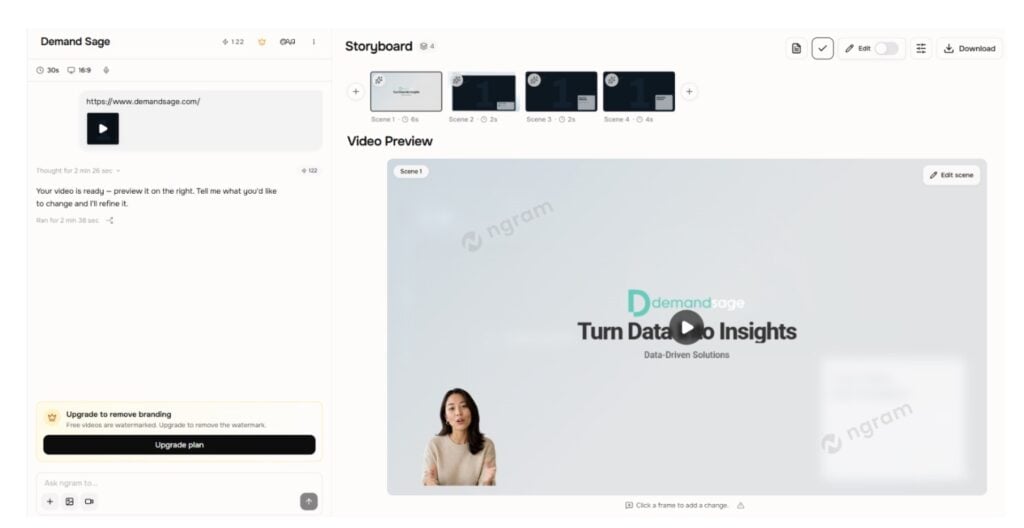
After rendering, you can refine things using plain language commands. Something like “shorten scene 2” or “make the intro more energetic” works. There’s also a full timeline editor if you want more control.
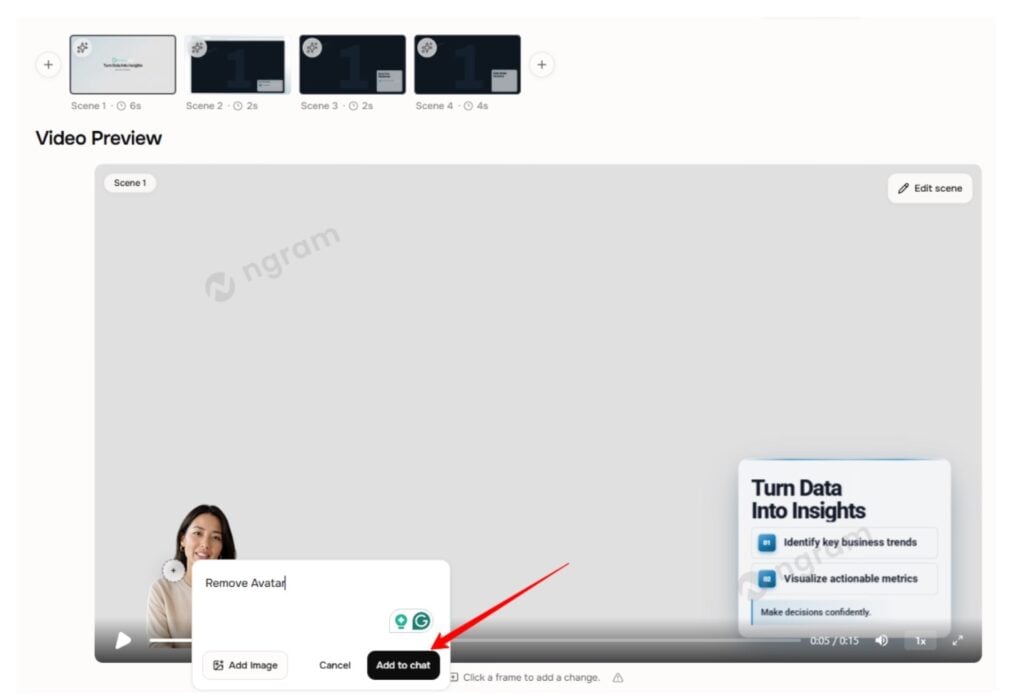
What surprised me was the interactive edit feature. You can click on any part of the video and make changes without regenerating the whole thing.
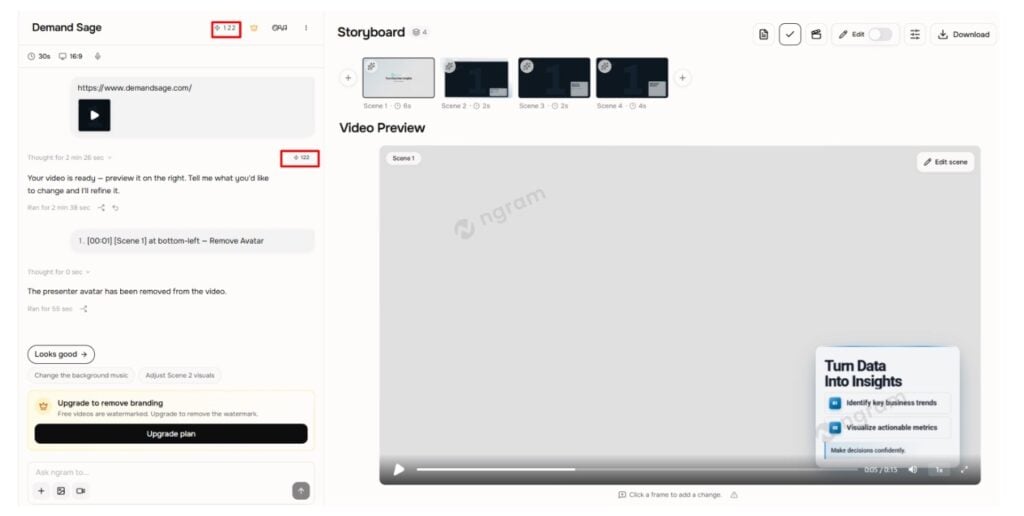
Editing after the render does use credits, but only a small amount compared with generating a video from scratch. AI-powered edits (agentic editing) run at roughly 1 credit per second, about a tenth of the 10 credits per second that generation costs. I adjusted two scenes in my first video this way, and it took maybe three minutes total.
Step 5: Export and Publish
Download the finished video in 16:9 for YouTube, 9:16 for Reels and TikTok, or 1:1 for LinkedIn. Captions adjust automatically to each format. You don’t re-edit anything.
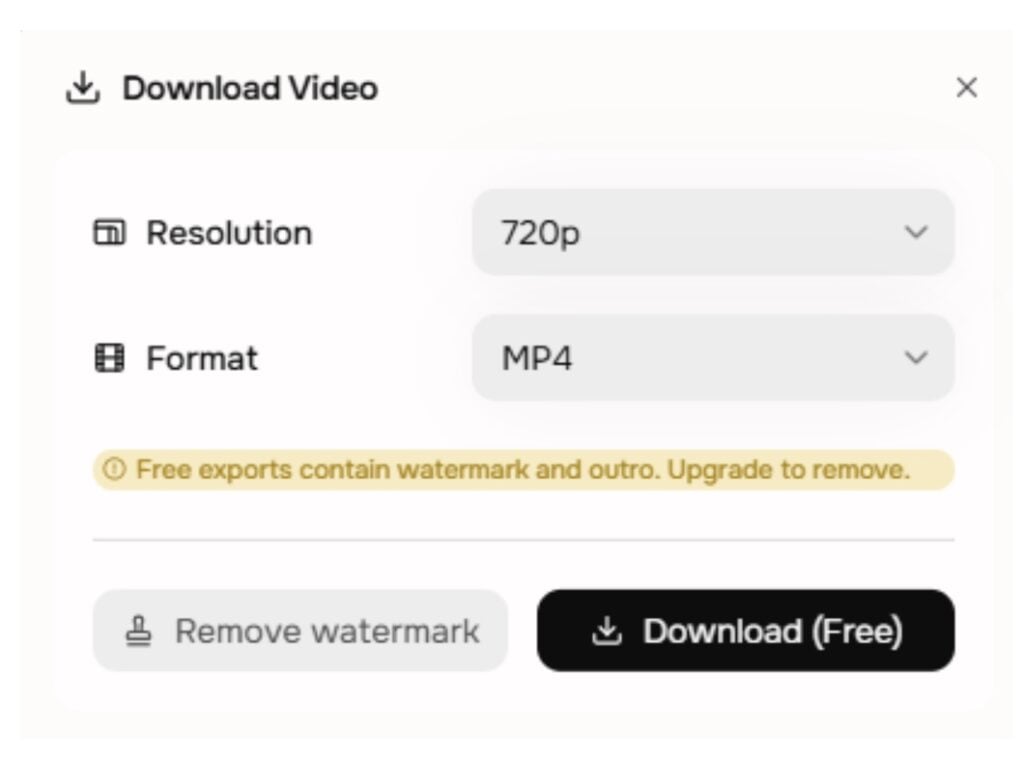
If you want to publish directly, ngram has built-in integration with LinkedIn, YouTube, and X. You can push your video out without leaving the platform. I exported mine in 16:9, and the whole process from clicking export to having the file on my desktop took under a minute.
ngram Features To Explore
The platform ngram is packed with dozens of features. The steps above explain everything. But that was a gist of the free plan only. Here’s what you get when you upgrade:
1. BrandKit
With the BrandKit feature, you will only need to set your logo and brand colors once. You can customize your fonts and intro/outro sequences too.
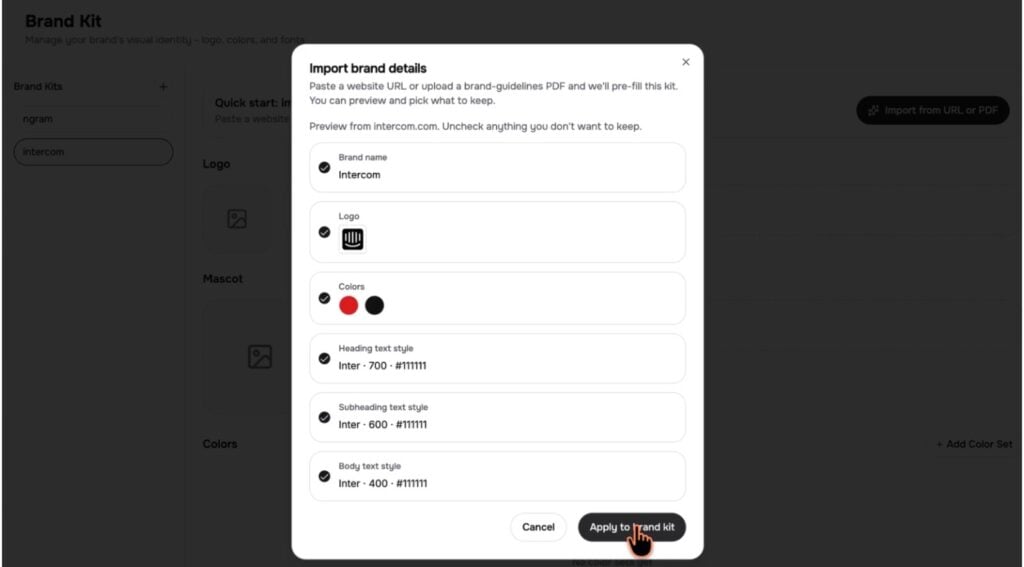
After that, every video stays consistent. This removes the “did we use the right hex code” worry from every new project. If multiple people on your team create videos, BrandKit keeps everyone aligned without sharing a brand PDF and hoping for the best.
Note: The BrandKit feature is only available with the Premium and Ultimate plans. You won’t be able to use it with the Free and Basic tiers.
2. Screen Recording Magic Edit
This feature takes your raw screen recordings and cleans them up automatically. Upload a rough product walkthrough, and ngram handles cursor smoothing, click emphasis, smart zoom on active UI elements, dead air trimming, and auto-generated step labels. Record once, skip the hour-long Camtasia session.
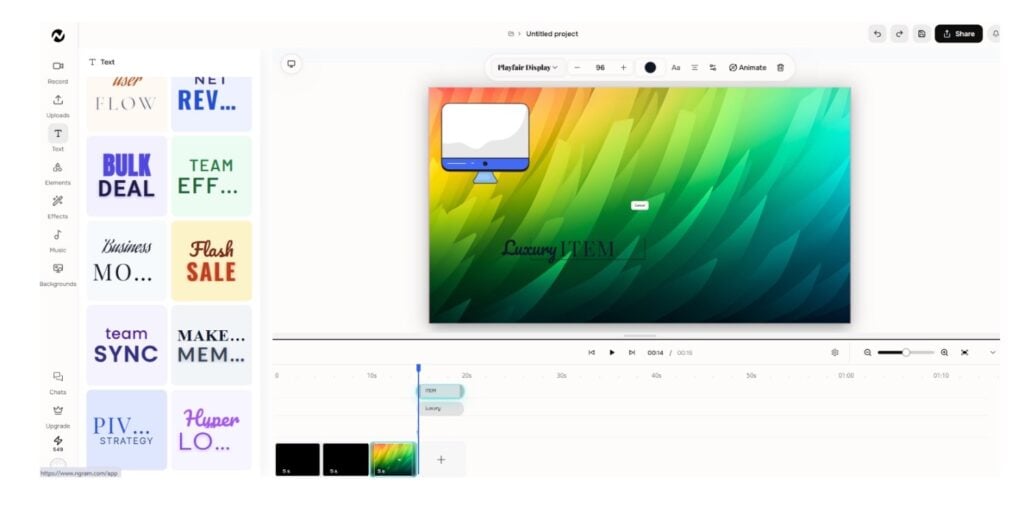
To test this workflow, select “Screencast” as the video type when creating a new project. ngram handles cursor smoothing, smart zoom on active UI elements, dead air trimming, and auto-generated step labels on your raw recording.
The full post-production polish pipeline is live and works well for product walkthroughs and tutorials.
3. AI Visuals and Motion Graphics
When your source material doesn’t include visuals (let’s say you started from a text prompt or a plain changelog), ngram generates scene-matched AI visuals and motion graphics to fill in the gaps. The built-in library includes transitions, emphasis effects, lower thirds, and always-on captions.
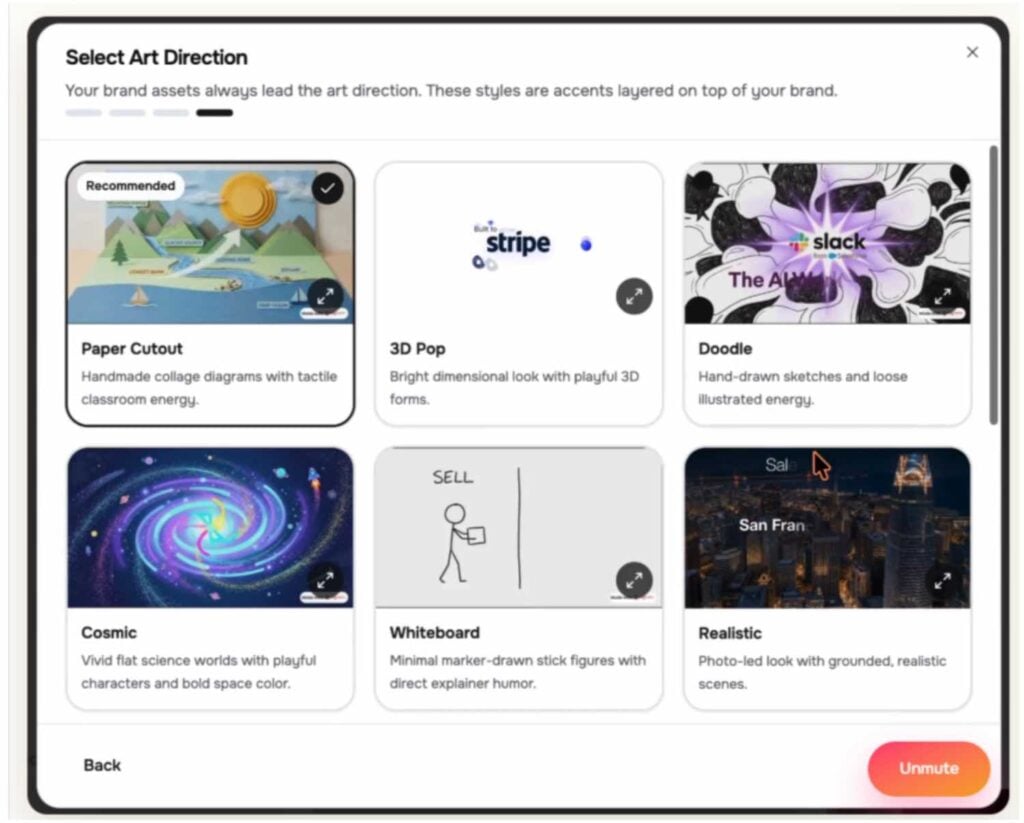
The quality is strong for product-focused content. For abstract or creative concepts, though, the visuals can look a bit generic. But for demos, explainers, and feature announcements, the output holds up well.
4. Multi-Format Export
One project, three formats. You create your video once and export it as landscape (16:9), vertical (9:16), and square (1:1) without re-editing anything. Captions adjust to each format on their own.
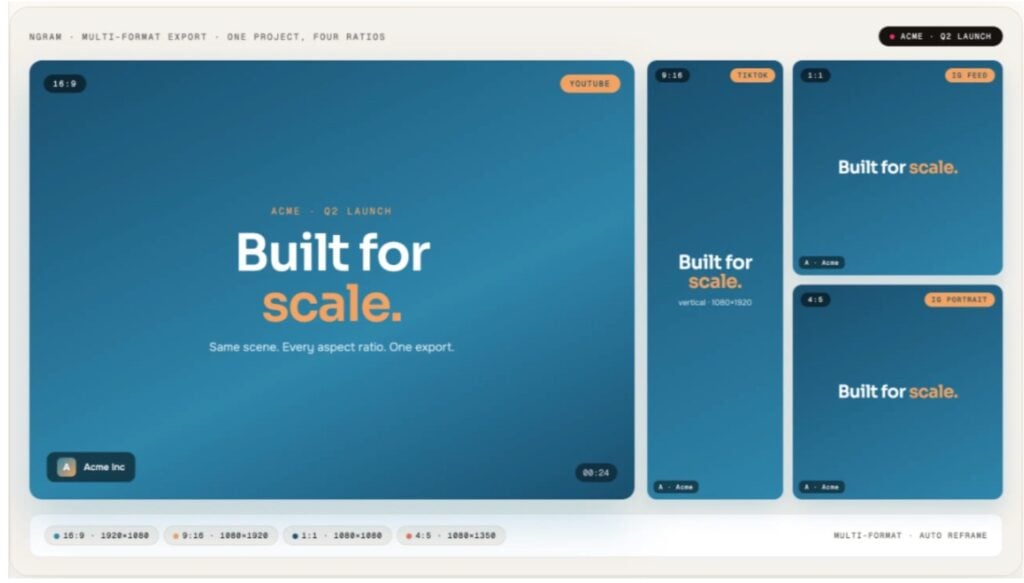
If you’re distributing across YouTube, LinkedIn, Instagram Reels, and TikTok from the same piece of content, this saves hours every week.
5. Integrations and Workflow Automation
ngram connects with MCP Server, Zapier, and n8n for automated video workflows. There’s a Chrome extension that lets you turn any webpage into a video right from your browser.
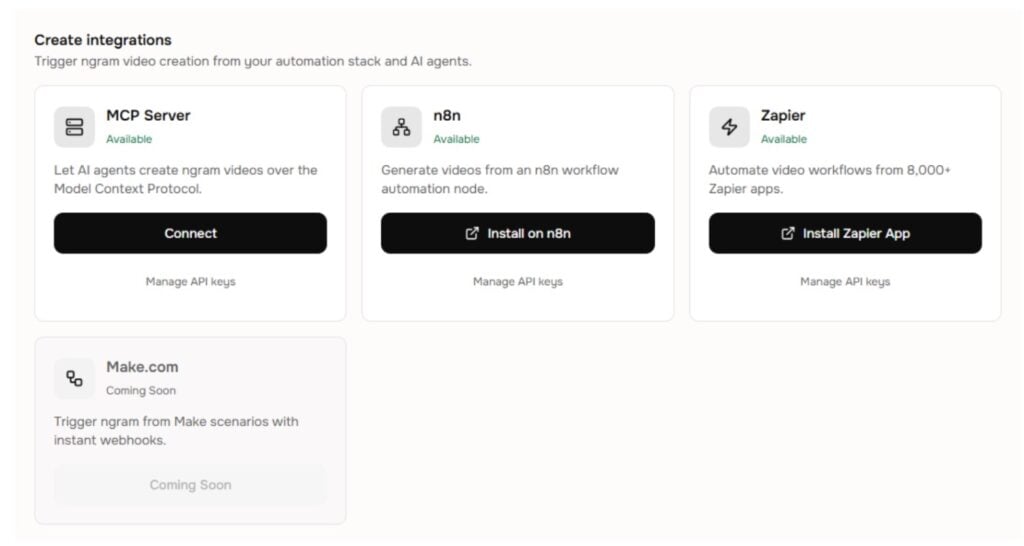
For teams that use AI agents, ngram also has an MCP server integration. That means you can trigger video creation through tools like Claude or ChatGPT. Direct social publishing to LinkedIn, YouTube, and X is built in as well.
ngram Pricing: What Each Plan Actually Buys You
ngram runs on a credit-based pricing model. Every plan comes with a monthly credit allocation, and different actions eat credits at different rates.
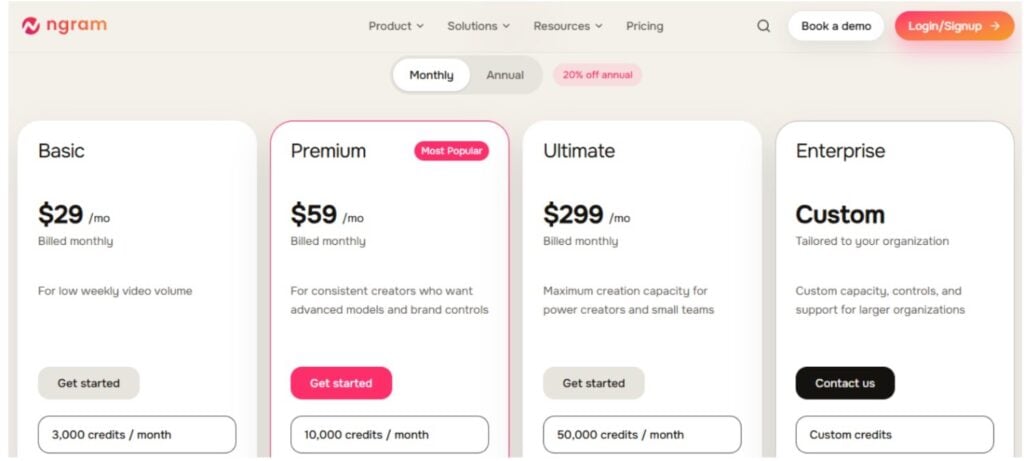
Here’s the full breakdown as of October 2026:
| Plan | Monthly Price | Annual Price | Credits/Month | Premium AI Video Generation | Export Quality |
|---|---|---|---|---|---|
| Free | $0 | N/A | Up to 600 (one-time) | Up to 60 seconds | 720p |
| Basic | $29/month | $23.20/month | 3,000 | Up to 300 seconds | 720p |
| Premium | $59/month | $47.20/month | 10,000 | Up to 1,000 seconds | 1080p |
| Ultimate | $299/month | $239.20/month | 50,000 | Up to 5,000 seconds | 4K |
| Enterprise | Custom | Custom | Custom | Custom | 4K |
Subscribing to the annual plan gives you a flat 20% discount. Video export quality and other advanced features differ based on your plan selection.
How ngram credits actually work
As I mentioned above, ngram runs on a credit system. 1-second video takes around 10 credits, as per official records. However, credit usage varies depending on how you want your video.
After accessing it, I created two random videos out of curiosity: a 17-second video and a 33-second video. Just to see how it works.
For the 17-second video, ngram took 209 credits. And 561 credits were used in the 33-second video. So credit usage totally depends on the script, material, and research. You can see the credit usage breakdown of the first video below.
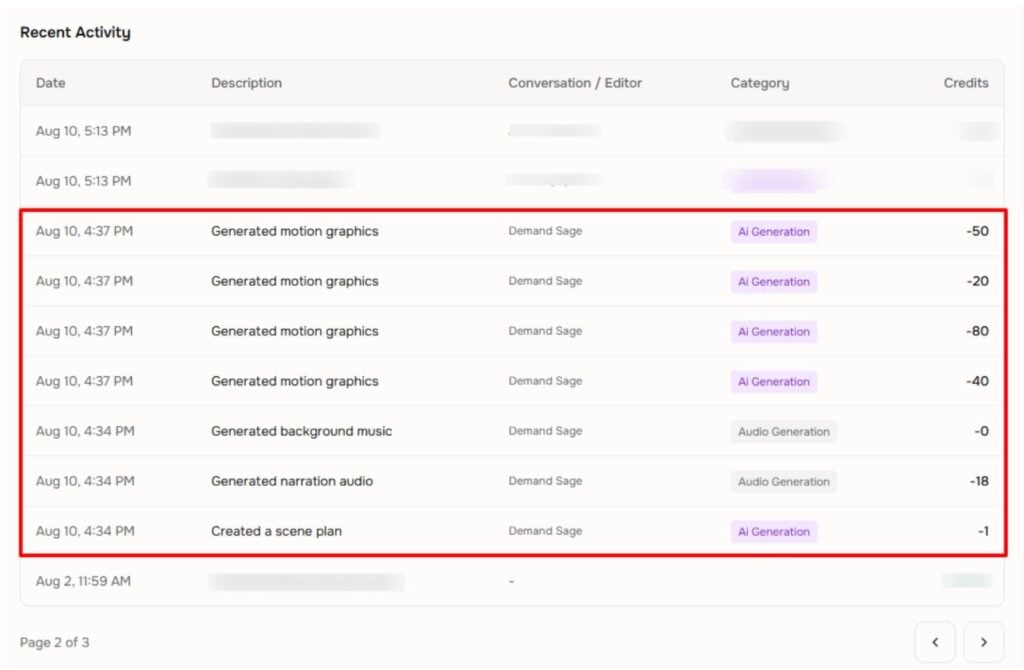
The good thing is that refining a video costs far less than making one. Timeline work such as dragging clips, adjusting text, or repositioning elements uses only a small amount of credits compared to a full render, and AI-powered agentic edits run at roughly 1 credit per second. So even when you lean on AI to fix scenes, your credit spend stays low.
If you ever run out of credits, there is always an option to purchase top-up credits. But for every plan, ngram charges a different amount for 1,000 credits:
- Free – 1,000 for $40
- Basic – 1,000 for $20
- Premium – 1,000 for $15
- Ultimate – 1,000 for $10
Unused credits also get rolled over. But rollover is only available on Premium and Ultimate plans. Free and Basic plan credits reset without carrying over.
If you pay month by month, the credits roll over to your monthly allowance (only 1 billing cycle). Meanwhile, annual subscription credits remain available until you renew the subscription.
Which ngram Plan Fits Which Team?
The free plan of ngram is best for beginners with a low budget or people who are just starting.
But if you are a professional marketer or usually upload product videos, you will need more than the free plan. Here’s how you choose a plan:
- Basic Plan: Watermark removal and premium videos up to 300 seconds.
- Premium: You need advanced model access for video and image generation, with video quality of 1080p.
- Ultimate: You need more than 1 workspace user and access to unlimited BrandKits, custom voices, avatars, and 4K videos. If you want to host videos and engagement, that is included in this plan.
Bigger organizations and agencies with custom needs can contact ngram’s sales through the Enterprise plan.
ngram vs the Alternatives
ngram plays in the planned, on-brand business video space, and it handles avatar-led video and screen recordings inside the same workflow. The difference from the tools below comes down to depth in one lane versus range across several.
Here’s how it stacks up against the tools you’re probably comparing it with.
| Tool | Core strength | Choose it over ngram when |
|---|---|---|
| Synthesia | Avatar-led corporate video | You need access to 240+ pre-built avatars across 175+ languages |
| HeyGen | Avatars and lip-sync localisation | You need digital twin cloning and advanced lip-sync localization at scale |
| Descript | Transcript-based editing | You edit long-form recorded footage |
| Loom | Fast async screen recording | You need speed, not polish |
| Pictory | Long-form to social clips | Repurposing existing video is the whole job |
Where ngram wins is in its range. You can:
- Turn existing product content into polished videos
- Create avatar-led presentations
- Clean up raw screen recordings
All of this without hiring an editor. You can also combine the Avatar workflow with its Screencast mode.
Synthesia still has a huge avatar catalog, with an enterprise-grade lip-sync option. If you just need a quick screen recording for internal async communication, Loom is faster. But ngram covers more ground than any single competitor in this list.
So, Is ngram Worth It?
In my experience with ngram, I would say this is best for marketers needing videos at scale, with speed. The speed is hard to beat if you’re someone who regularly puts out product content.
What surprised me is how the credit system works. Most tools in this field charge heavily for every small tweak, whereas ngram keeps post-render cost very low.
BrandKit is another reason I’d pick ngram over alternatives. Set it once, and your videos stay on-brand without rechecking anything every time.
It’s not perfect for every use case, though. If you need a dedicated avatar studio with hundreds of pre-built digital presenters, Synthesia or HeyGen still have deeper avatar libraries. But ngram’s Avatar workflow covers most use cases. When combined with its screencast and motion graphics, it handles a wider range of video types than most competitors.
SaaS teams pushing out demos and feature videos on a regular basis, ngram is worth the investment.
If you see it in a practical way, the Basic plan gives you 3000 credits. With this, you can roughly create 5 to 6 videos easily. Meanwhile, the Premium plan increases the limit to 10K and upgrades the quality to 1080p at just $59/month.
Since there are options to earn more credits and editing costs only a fraction of a full render, your actual output ends up higher than you expect it to be.
Final Verdict: ngram is a fast, practical way to create marketing videos
After testing ngram, I would give ngram a solid 8.5 out of 10.
ngram definitely does what it says: add anything about the product and get a marketing video ready in minutes.
Reviewing the storyboard before generation saves you from burning credits on a bad direction. The low cost of fixing things after the render is my favorite part and one of the reasons for giving this score.
One thing I would like them to improve in the future: better AI visuals on complex scenes. Also, the motion graphics are great for clean product demos, but the outputs need manual intervention.
However, this can be ignored for a free AI marketing video generator. If you want to test all these features by yourself, sign up today and get started with 600 free credits. You’ll know within one render if ngram fits your workflow.
FAQs
ngram is an AI-driven marketing video generator that creates videos from scratch with any raw materials you attach. This can be a doc, screen recording, screenshots, or just plain text.
ngram offers up to 600 credits to new users, and there are options to earn credits through actions. The free plan works best as long as you don’t need BrandKit or a watermark.
ngram’s first draft takes around 3 to 5 minutes. But if you go on editing and tweaking, it can go up to 15 to 30 minutes for a polished marketing video.
The BrandKit feature lets you upload your logo, brand colors, fonts, and custom intro/outro sequences. Once set up, every video follows your brand guidelines automatically. BrandKit is available on Premium and above.
No. The Google Books Ngram Viewer is a search engine that charts word frequencies in published books over time. ngram (ngram.com) is a completely separate company. It’s an AI video creation platform for marketing teams. They share a name but have zero connection.
